Connect to Bitbucket
Sign in securely with your Bitbucket account. PipePeek uses your access token to read Pipeline runs — nothing more.

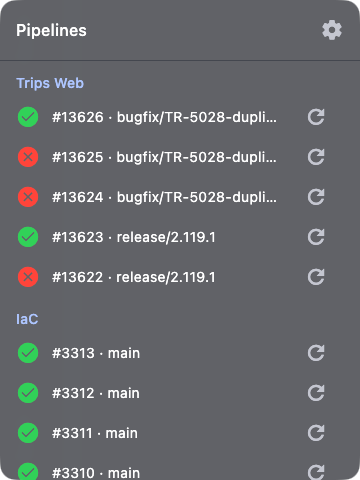
PipePeek lives in your macOS menu bar and quietly watches your Bitbucket Pipelines — so a single glance tells you what's passing, running, or broken. No tabs, no context-switching.

Universal build for Apple silicon & Intel · macOS 12+
Connect once, choose what matters, and let PipePeek keep watch from the corner of your screen.
Sign in securely with your Bitbucket account. PipePeek uses your access token to read Pipeline runs — nothing more.
Work across several Bitbucket workspaces? Select the one you care about and PipePeek scopes everything to it.
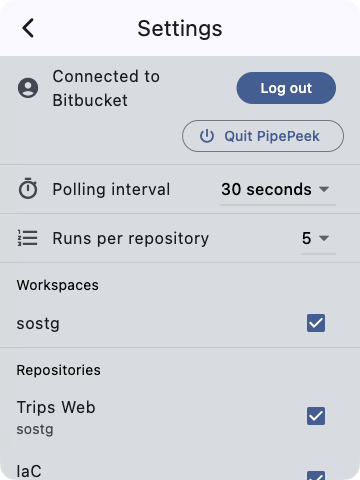
Tick just the repositories whose Pipeline runs you want to follow. Ignore the noise, keep the signal.
From every 2 seconds to every 5 minutes — dial in how fresh you need your status, and how light you want it on the API.
Decide how many recent runs to show for each repo, so the popup stays exactly as detailed as you like.
The moment a build passes or fails, PipePeek posts to Notification Center — so you never miss a red pipeline.
The tray icon spins while pipelines are running and settles the instant they finish — a live, ambient read on your builds without opening anything.
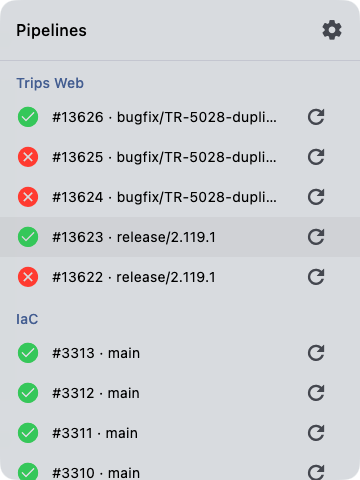
A native menu-bar popup and settings panel that feel right at home on macOS — in light and dark.

Teams who stopped babysitting browser tabs and let PipePeek do the watching.
"I used to keep a browser tab pinned to Bitbucket all day. PipePeek killed that habit in an afternoon — a green dot in my menu bar is all I need."
"The animated icon is weirdly satisfying. I know a build is running before I even switch windows."
"Set the polling to 15 seconds, picked our three noisy repos, done. It just sits there and tells me the truth."
"Native notifications mean I catch failed deploys the second they happen instead of ten minutes later. Worth every cent."
"Finally a menu-bar app that respects my screen space and my attention. Lightweight, glanceable, gorgeous."
PipePeek is distributed directly (not through the Mac App Store), so the first launch takes one extra click to get past macOS Gatekeeper.
Drag PipePeek into /Applications, then Control-click (right-click) it and choose Open → Open in the dialog.
Double-click to launch, dismiss the warning, then go to System Settings → Privacy & Security, scroll to "PipePeek was blocked", and click Open Anyway.
Remove the quarantine flag in one line:
xattr -dr com.apple.quarantine /Applications/PipePeek.app